使用意图传递数据的几种方式
点此获取完整代码
我们除了要从活动返回数据,也常常要传递数据给活动。对此我们可以使用Intent对象将这些数据传递给目标活动。
1、创建一个名为PassingData的项目,在activity_main.xml文件中添加一个Button:
<Button android:id="@+id/btn_SecondActivity" android:layout_width="fill_parent" android:layout_height="wrap_content" android:onClick="onClick" android:text="Click to go to Second Activity" />
2、在res/layout文件夹中添加一个新的secondactivity.xml文件,添加TextView和Button:<TextView android:layout_width="fill_parent" android:layout_height="wrap_content" android:text="Welcome to Second Activity" /> <Button android:id="@+id/btn_MainActivity" android:layout_width="fill_parent" android:layout_height="wrap_content" android:onClick="onClick" android:text="Click to return to main activity" />
3、在当前包中新建一个Class,命名为SecondActivity,在SecondActivity.java中添加如下代码:package com.example.passingdata;import android.app.Activity;import android.content.Intent;import android.net.Uri;import android.os.Bundle;import android.view.View;import android.widget.Toast;public class SecondActivity extends Activity { @Override protected void onCreate(Bundle savedInstanceState) { // TODO Auto-generated method stub super.onCreate(savedInstanceState); setContentView(R.layout.secondactivity); // 为了获得通过Intent对象发送的数据,先使用getIntent()方法获取Intent对象, // 再调用该对象的getStringExtra()方法来获得使用putExtra()方法设置的字符串值 Toast.makeText(this, getIntent().getStringExtra("str1"), Toast.LENGTH_SHORT).show(); // 同上,对于整数值,调用getIntExtra()方法(注意,如果该名称没有存储值,则会使用默认值,在此为0) Toast.makeText(this, Integer.toString(getIntent().getIntExtra("age1", 0)), Toast.LENGTH_SHORT).show(); // 获取Bundle对象,要使用getExtras()方法:对于字符串值,使用getString();对于整数值,使用getInt() Bundle bundle = getIntent().getExtras(); Toast.makeText(this, bundle.getString("str2"), Toast.LENGTH_SHORT) .show(); Toast.makeText(this, Integer.toString(bundle.getInt("age2")), Toast.LENGTH_SHORT).show(); } public void onClick(View v) { Intent intent = new Intent(); intent.putExtra("age3", 45); // 回传可以使用setData()方法(上一篇中讲过) intent.setData(Uri.parse("Something passed back to main activity")); // 设置Intent和结果码 setResult(RESULT_OK, intent); // 关闭活动 finish(); }}
4、在AndroidManifest.xml文件中添加如下代码:<activity android:name=".SecondActivity" android:label="Second Activity" > <intent-filter> <action android:name="net.zenail.PassingData.SecondActivity" /> <category android:name="android.intent.category.DEFAULT" /> </intent-filter> </activity>
5、在MainActivity.java文件中添加如下代码:public void onClick(View view) { Intent intent = new Intent("net.zenail.PassingData.SecondActivity"); // 法一:使用putExtra()方法为Intent对象添加了两个键/值对:String和integer类型 intent.putExtra("str1", "This is a string"); intent.putExtra("age1", 25); // 法二:创建Bundle对象,向其添加两个键/值对,再使用putExtras添加给Intent对象 Bundle extras = new Bundle(); extras.putString("str2", "This is another string"); extras.putInt("age2", 35); intent.putExtras(extras); // 启动活动并设置1为请求码 startActivityForResult(intent, 1); } @Override protected void onActivityResult(int requestCode, int resultCode, Intent data) { // TODO Auto-generated method stub super.onActivityResult(requestCode, resultCode, data); if (requestCode == 1) { if (resultCode == RESULT_OK) { // 用getIntExtra()获取用putExtra()设置的整数值 Toast.makeText(this, Integer.toString(data.getIntExtra("age3", 0)), Toast.LENGTH_SHORT).show(); // 用getData()获取用setData()设置的字符串值 Toast.makeText(this, data.getData().toString(), Toast.LENGTH_SHORT).show(); } } }
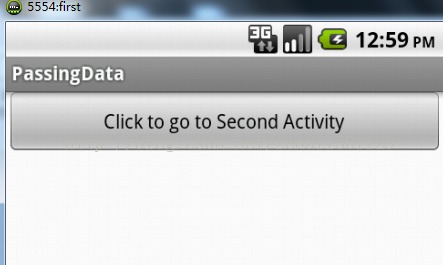
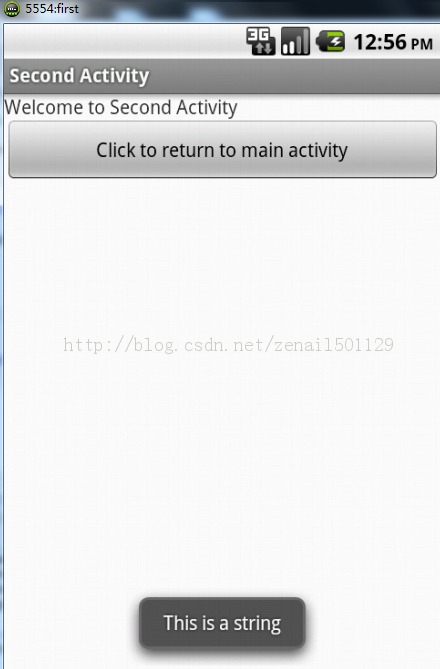
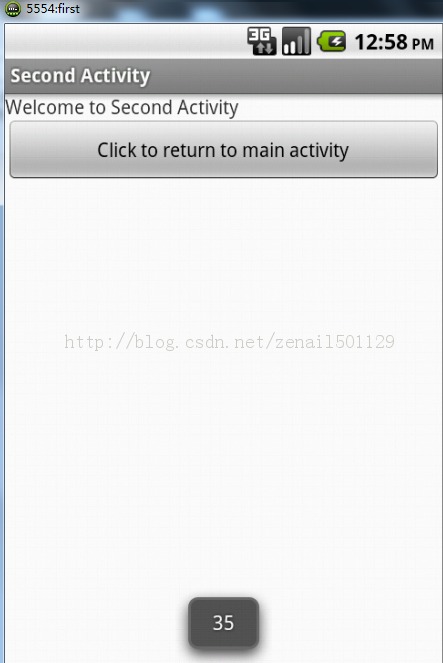
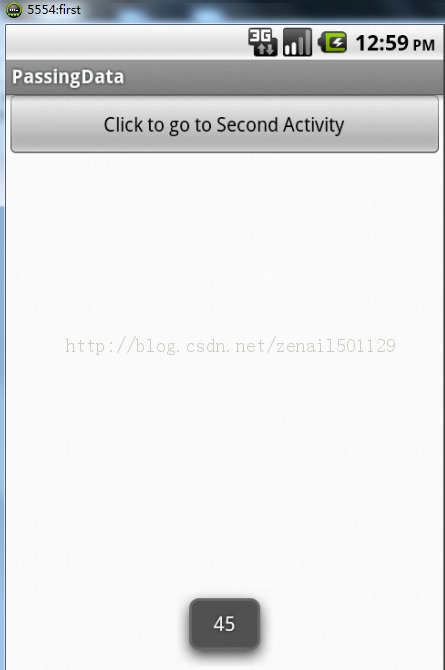
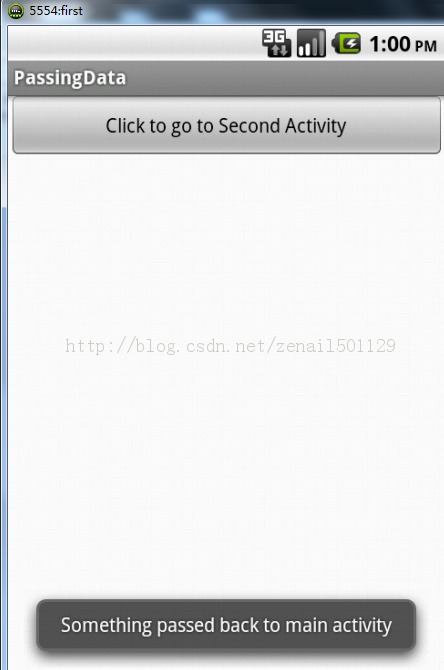
6、运行,效果如下:点击按钮:
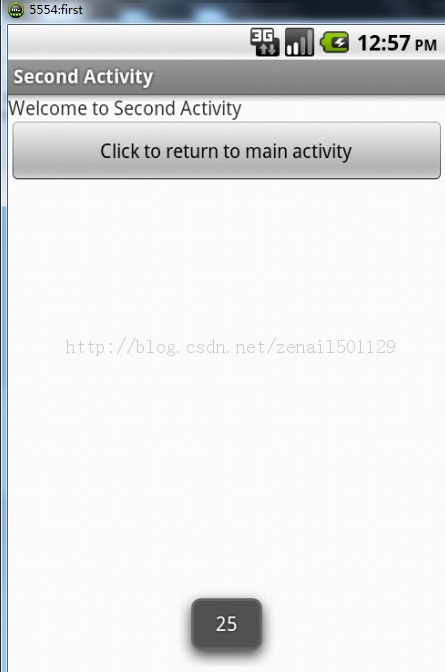
出现如下画面:
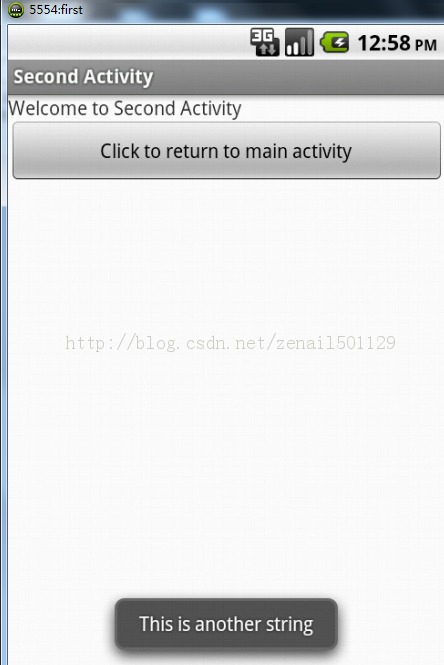
消息框消失,点击按钮,出现如下画面: