经常用 MyEclipse 写代码,时间久了会觉得白色的背景颜色很刺眼,于是乎便想要换一种柔和些的颜色来缓解视力疲劳,那么怎么样来修改 MyEclipse 代码编辑区域的背景颜色呢?
依次展开菜单
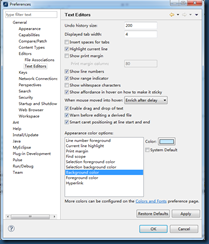
Window >> Preferences >> General >> Editors >> Text Editors
选择右侧的 Background color 选项,去除 System Default 复选框的选中状态,然后点击 Color 按钮,选择一个自己看着舒适的颜色吧,然后点击 Apply 按钮,此时已经成功设置了代码编辑区域的背景颜色了。
设置字体:
Windows-->preferences-->General-->Appearance-->Colors and Fonts
设置了黑色背景之后,无法设置字体颜色? 如何解决呢?
Windows-->preferences-->java-->editor-->syntax coloring,然后在左边element框里就可以改字体颜色,下面还有预览